
Delegated signer allows a signer to pass responsibility for completing an envelope to another person.
Unlike redirect/forward (used by the envelope owner), delegation is performed directly by the Signer.
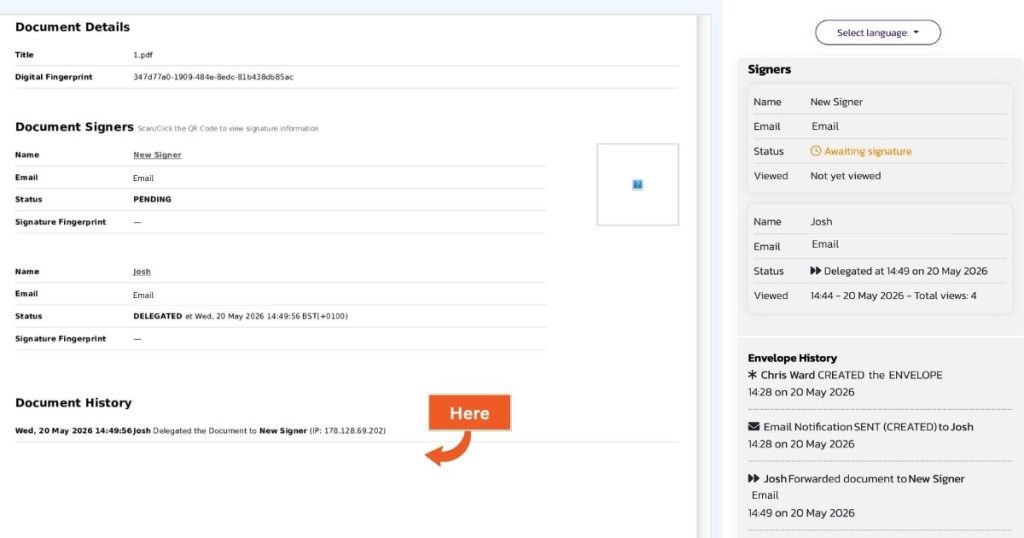
The original signer remains part of the envelope as a read-only participant for audit and historical purposes.
When to use Delegate Signing
You should use delegation when:
- You have received a document to sign but do not have the authority to complete it
- Another individual needs to review and sign the documents on your behalf
Step 1: Access the delegate option
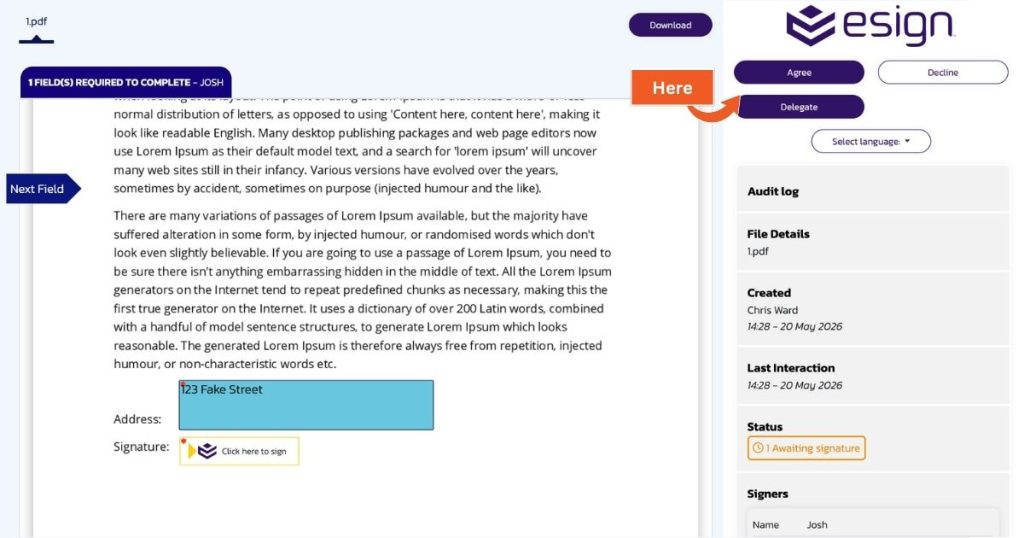
- Open the envelope you have been asked to sign
- Select the Delegate in top-right corner of the screen
Step 2: Enter delegate details
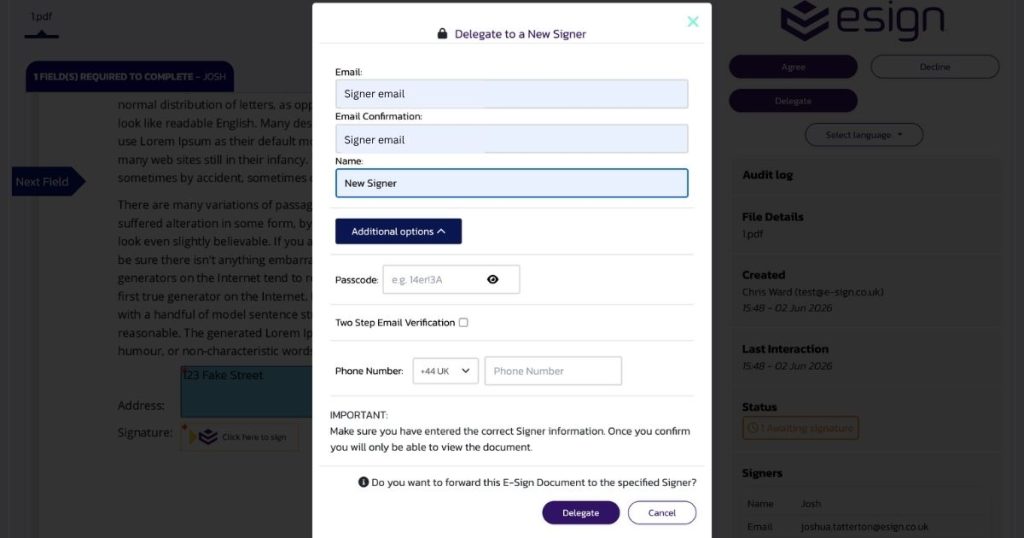
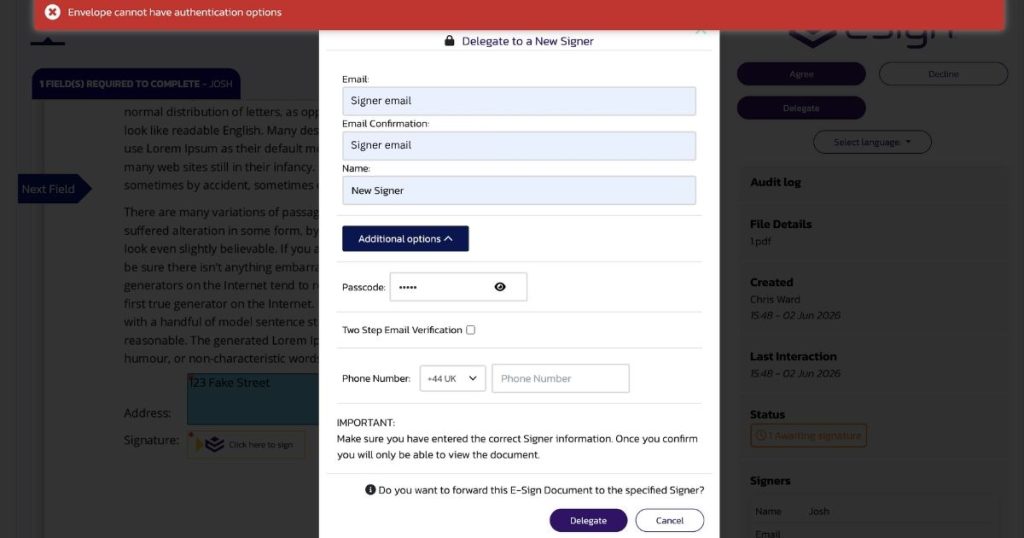
Complete the delegation form with:
- Email address of the new signer
- Email confirmation
- Name of the new signer
Step 3: Optional security settings
Depending on your account type, you may also be able to add:
- Passcode protection
- Two-step email verification
- SMS verification (requires available SMS credits)
Step 4: Confirm delegation
- Submit the request to delegate the new envelope.
What happens after delegation
For the original signer
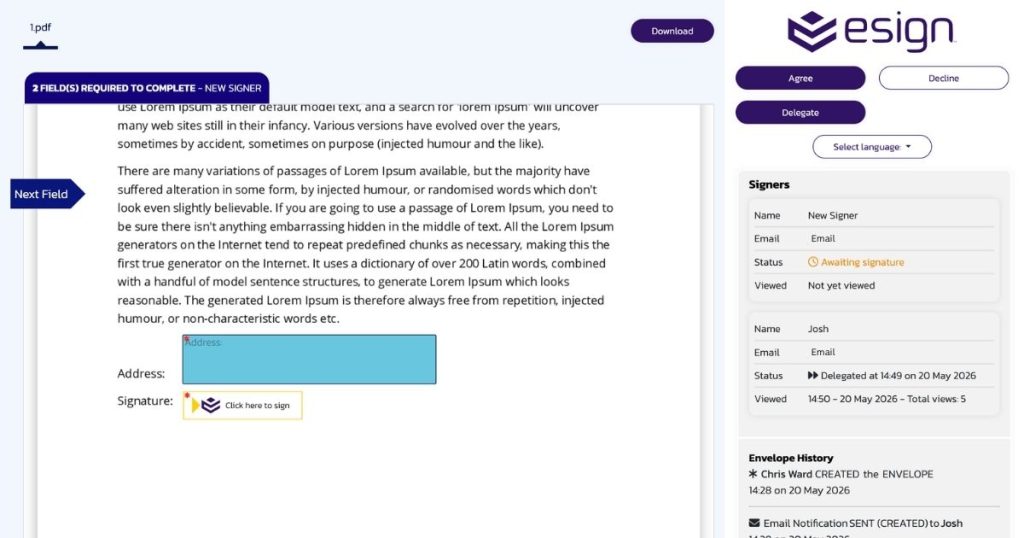
- The Original Signer will no longer have any fields to fill in.
- They can still view the envelope and download the document.
- The New Signer and Delegate information can be seen in the audit log on the right.
For the new signer
- They receive the envelope and can complete the signing process as normal.
- All previously submitted fields are reset and must be completed again by the new signer.
Audit and tracking
- The delegation is recorded in the audit log.
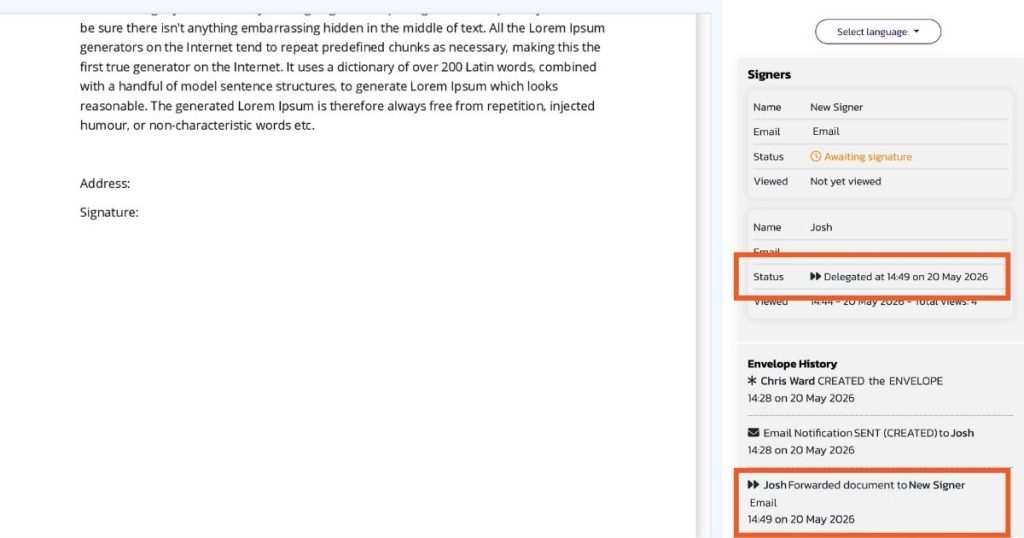
- A cover letter is generated showing the delegation history
Important considerations
Delegation scope
- Delegation applies to all documents within the envelope
- You can only delegate before any documents are fully completed
Account limits and restrictions
- All account types can use basic delegation
- Advanced security options (passcodes, 2-step verification) are only available on: Standard, Business and Enterprise plans. If these options are used without elegibilty, the delegation request will fail with an error message
SMS verification
- Requires sufficient SMS credits on the account
- If no credits are available, delegation using a phone number will fail
- Signers are not notified of credit availabilty in advanced
- Each time a Signer delegates to a new Signer using the Phone Number option, SMS credits are deducted from the account of the envelope author.
Seal fields
- Seal fields only apply to the account owner with a registered seal
- If a signer delegates an envelope containing a seal field, the seal field is removed, as it does not apply to the new signer